Adding Your Team
User Management allows you to add team members to your organization, assign roles, configure channel access, and control how conversations are routed to them.
Written By Thando Nomvungu
Last updated 21 days ago
How to Add a New User
From your dashboard, navigate to User Management.
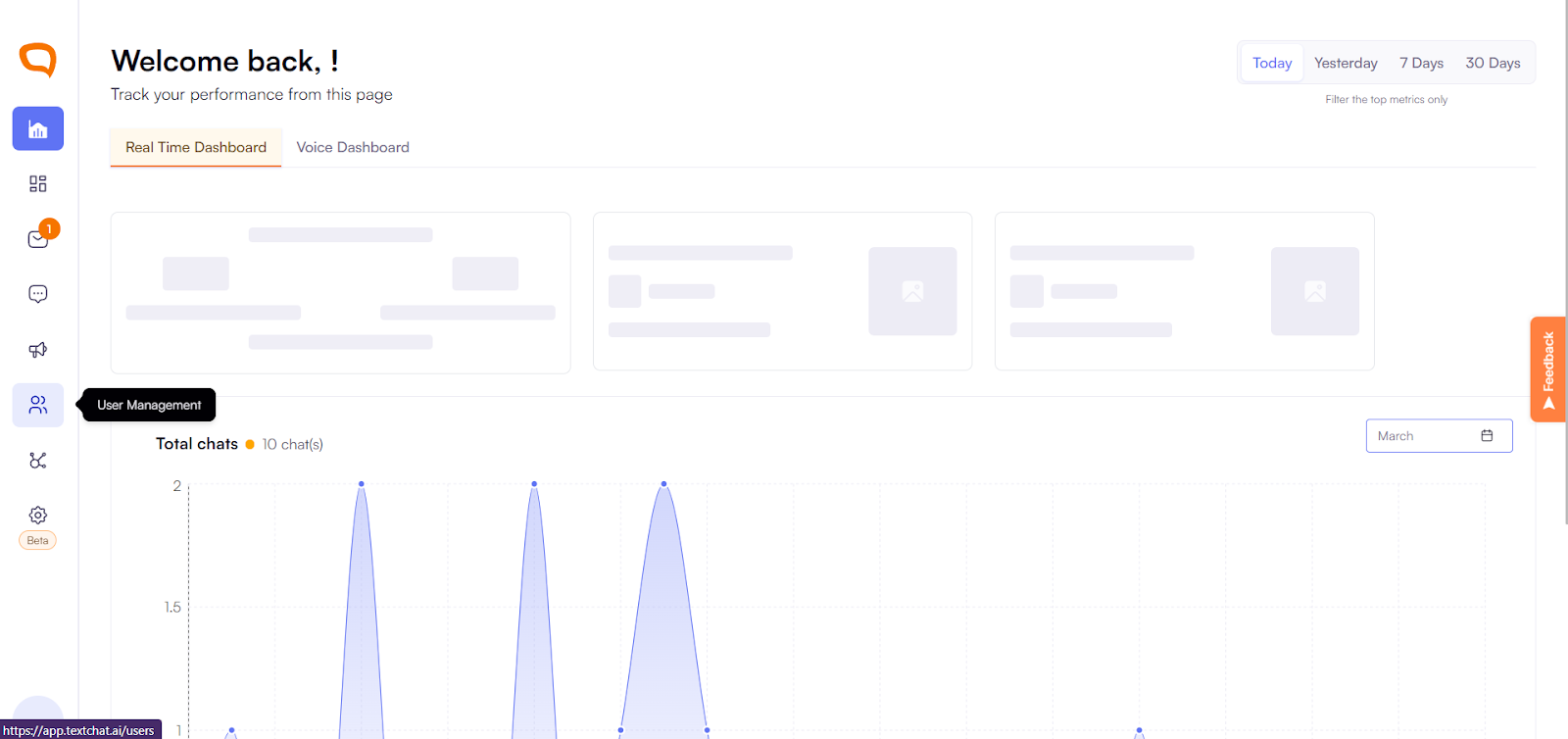
Click Add User.
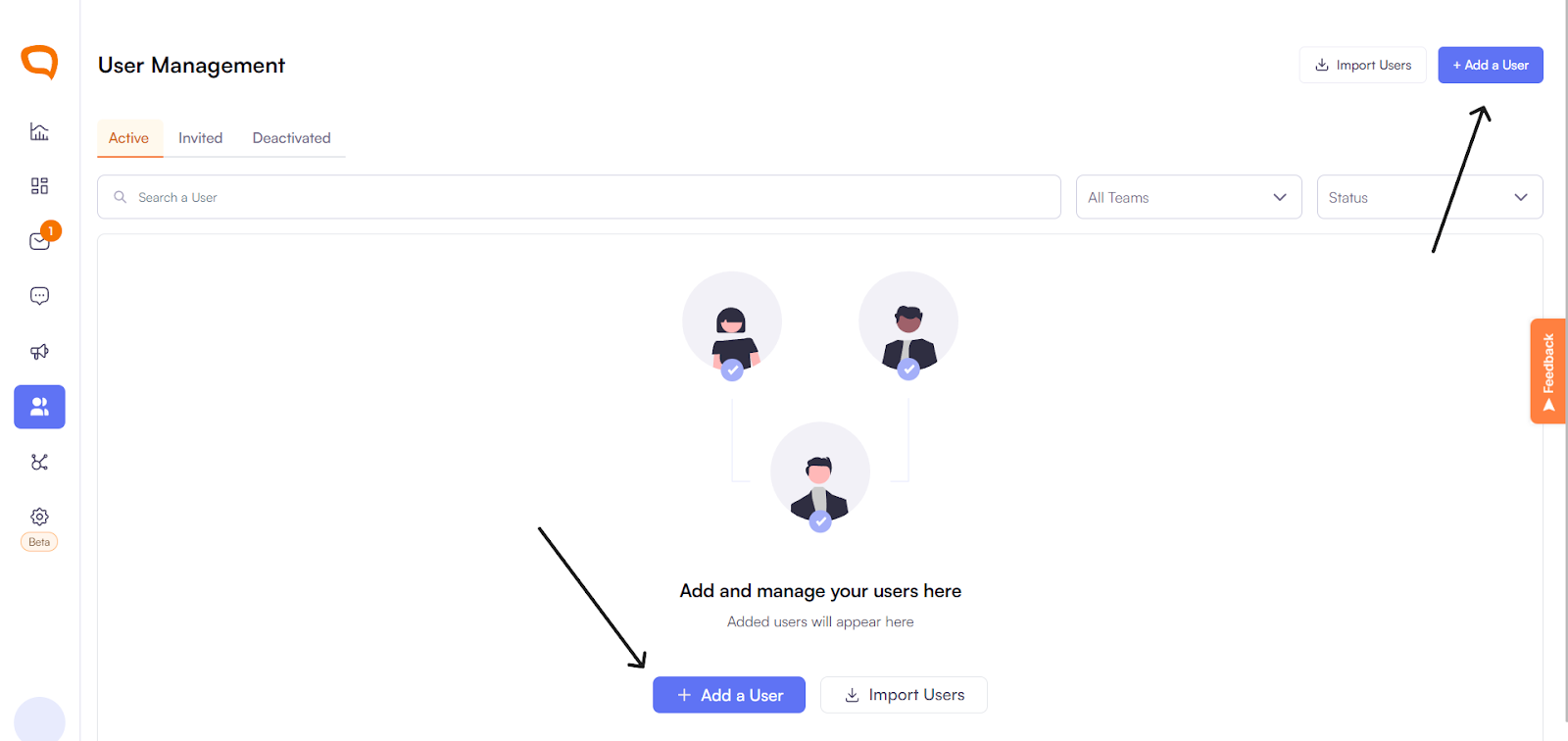
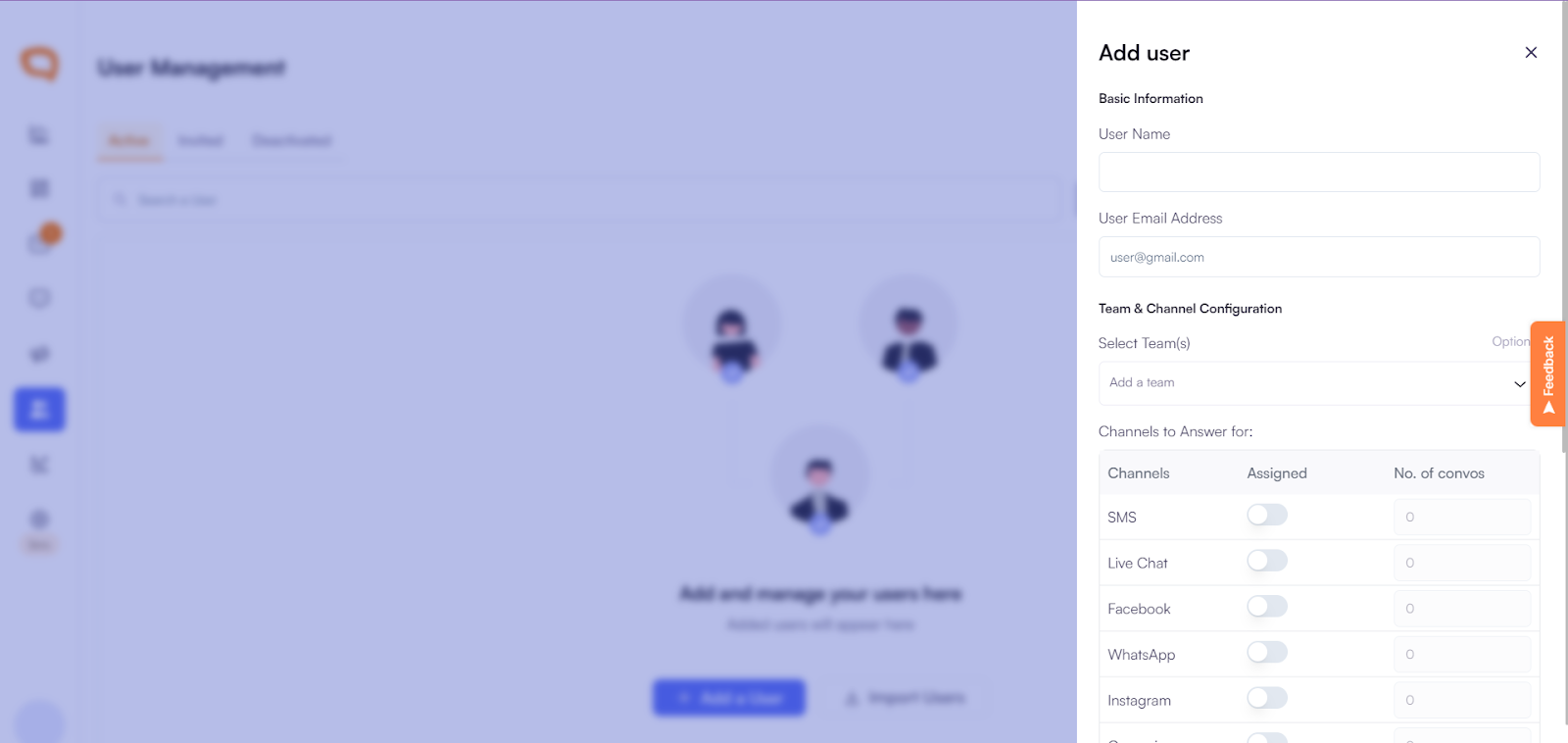
Fill in user details:
Full Name
Email Address (should be valid)
Role (e.g. Agent, Super Admin, or custom role)
(Optional) Profile image
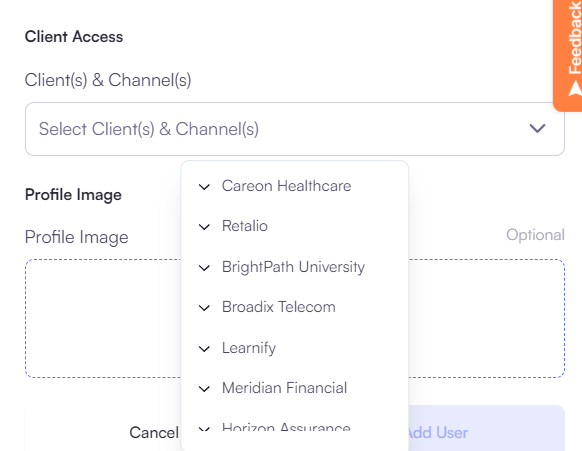
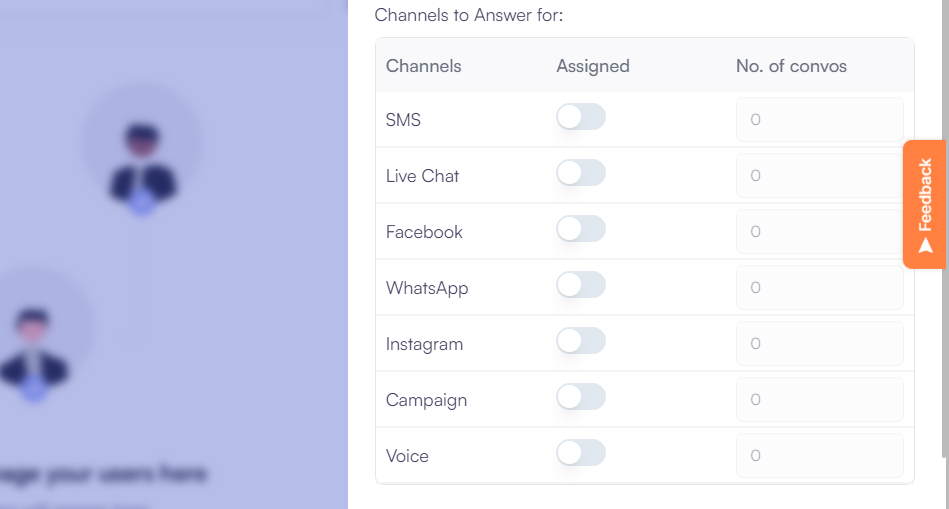
Assign client access:
Select which clients the user can handle
For each client, choose which channels they can respond to (e.g. SMS, Live Chat, Facebook)
Channel options are limited based on the user’s allowed channels
Configure routing settings:
Set how many conversations the user can handle per channel at a time
Example:
SMS: 3 conversations
Live Chat: 2 conversations
Facebook: 4 conversations
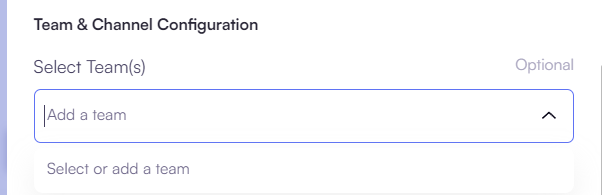
(Optional) Assign a team:
Type to create a new team or select an existing one
Teams are used for routing and organizational structure
Ensure all required fields are completed.
Click Add User

What Happens Next
The user receives an email invitation to join the platform
Once accepted:
The user becomes active in the system
They can log in and access the platform based on their role
Invited users appear as Pending until the invite is accepted
Channel & Client Access
Users can only respond to:
The clients they are assigned to
The channels enabled for them
Channels not enabled for a user will be disabled/unavailable during setup
Routing & Capacity
Each user has limits for how many conversations they can handle per channel
These limits are used for skill-based routing
Once a user reaches capacity:
They will not receive new conversations for that channel
New conversations are routed to other available agents or queued
Key Features
Client Assignment – Control which clients a user supports
Channel Permissions – Restrict access to specific communication channels
Capacity Limits – Set workload per agent per channel
Team Assignment – Group users for routing and organization
Custom Roles – Create tailored permission sets
Best Practices
Assign users only to relevant clients and channels
Set realistic conversation limits to avoid overload
Use teams to organize agents effectively
Create custom roles for specialized responsibilities (e.g. Campaign Manager)
Ensure users accept their invite promptly to become active