SMS Setup
To send and receive SMS messages in Palera, you need to connect a Twilio account and purchase a valid phone number. Once configured, SMS conversations will appear in your unified inbox, allowing your team to manage customer interactions alongside other channels.
Written By Thando Nomvungu
Last updated 21 days ago
Requirements
To set-up SMS in Palera, you need:
A Twilio account (Sign-up here)
Twilio account credentials
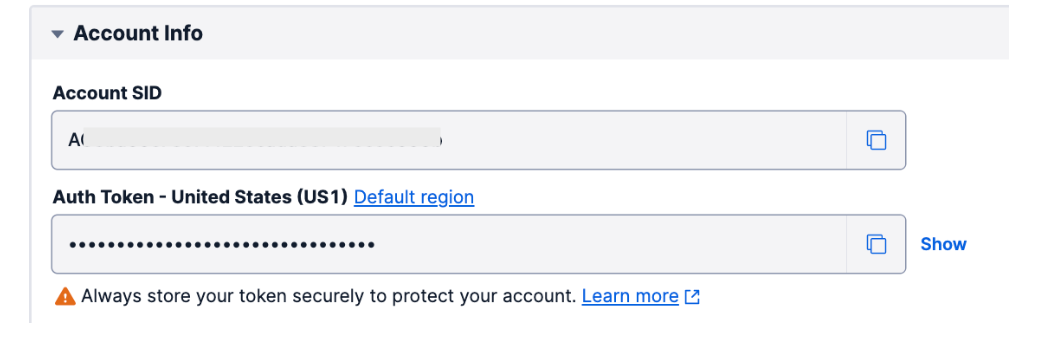
The Twilio Account credentials
Your Account SID: A Twilio Account SID is a 34-character alphanumeric identifier that begins with the letters “AC" and acts as the username
Auth Token: A Twilio Account Auth Token acts as a password.
A purchased Twilio phone number (Instructions here)
(For US messaging) A 10DLC-compliant number with an approved campaign (Instructions here)
SMS functionality will not work until a Twilio account is connected and a valid number is configured.
Step 1: Create & Connect Your Twilio Account
Sign up or log in to your Twilio account.
From your Twilio dashboard, locate:
Account SID
Auth Token
In Palera:
Go to Organization Settings / Integrations
Select Twilio
Click Connect Account
Enter:
A name for your Twilio account (for identification)
Your Account SID
Your Auth Token
Select which client(s) this Twilio account will be used for.
Complete the setup.
Step 2: Purchase a Twilio Phone Number
In your Twilio console, go to Phone Numbers.
Click Buy a Number.
Choose a number based on:
Country
Type (local, mobile, etc.)
Confirm and purchase the number.
Phone numbers must be purchased directly in Twilio. Palera does not support purchasing numbers within the platform.
Step 3: (US Only) Register for 10DLC
If you plan to send SMS to US numbers, you must complete 10DLC registration:
In Twilio, go to Messaging → Regulatory Compliance → A2P 10DLC
Create a Brand (if not already created)
Register a Campaign:
Select a use case (e.g. Customer Care)
Provide sample messages
Describe how users opt in to receive messages
Submit for approval
Wait for campaign approval before sending messages
Without 10DLC approval:
You cannot send SMS to US numbers
Messages may be blocked by Twilio
Step 4: Link Your Number to a Messaging Service
In Twilio, open your purchased phone number
Assign it to a Messaging Service (created during campaign setup)
Ensure the campaign is linked to that messaging service
This allows Twilio to process and deliver messages correctly.
Step 5: Connect SMS in Palera
Go to Client Management
Select your client
Navigate to the SMS channel
Click Connect
Select the Twilio number(s) you want to use
Enable the channel
How It Works
Once configured, SMS messages will appear in Palera’s unified inbox
Conversations are routed to agents based on skill-based routing and capacity
You can manage SMS alongside WhatsApp, Facebook, Instagram, and Live Chat
Important Notes
SMS can still work internationally without 10DLC
10DLC is only required for sending messages to US numbers
Without 10DLC:
You may still receive messages from US numbers
You cannot reply to them (The message input field will be disabled)
A banner will appear indicating that the number is not compliant
Disconnecting & Reconnecting Numbers:
SMS numbers can be disconnected and reconnected at any time
Disconnecting a number will stop all messaging activity for that number until it is reconnected
Key Features
Unified Inbox – Manage SMS with all other channels
Twilio Integration – Reliable global messaging infrastructure
Number Management – Use multiple numbers per client
Compliance Support – Built-in support for 10DLC requirements
Best Practices
Complete 10DLC registration early if targeting US customers
Use clear, compliant sample messages during campaign setup
Ensure users have opted in before messaging them
Test your number after setup to confirm messages are sending and receiving correctly