Connecting Facebook to Palera
Connecting Facebook allows Palera to manage messages from your Facebook Pages directly in the unified inbox. Once connected, your team can respond to messages, manage conversations, and track engagement all in one place.
Written By Thando Nomvungu
Last updated 21 days ago
Do you have a Facebook business account? If not, create one here first.
How to Connect Facebook
Navigate to Client Management > [Client Name] > Channels
Go to the Facebook channel and click Connect.
You will be redirected to a Facebook login / authorization page:
Check that the account shown is the correct Facebook account.
If it’s not, click Log into another account to switch.
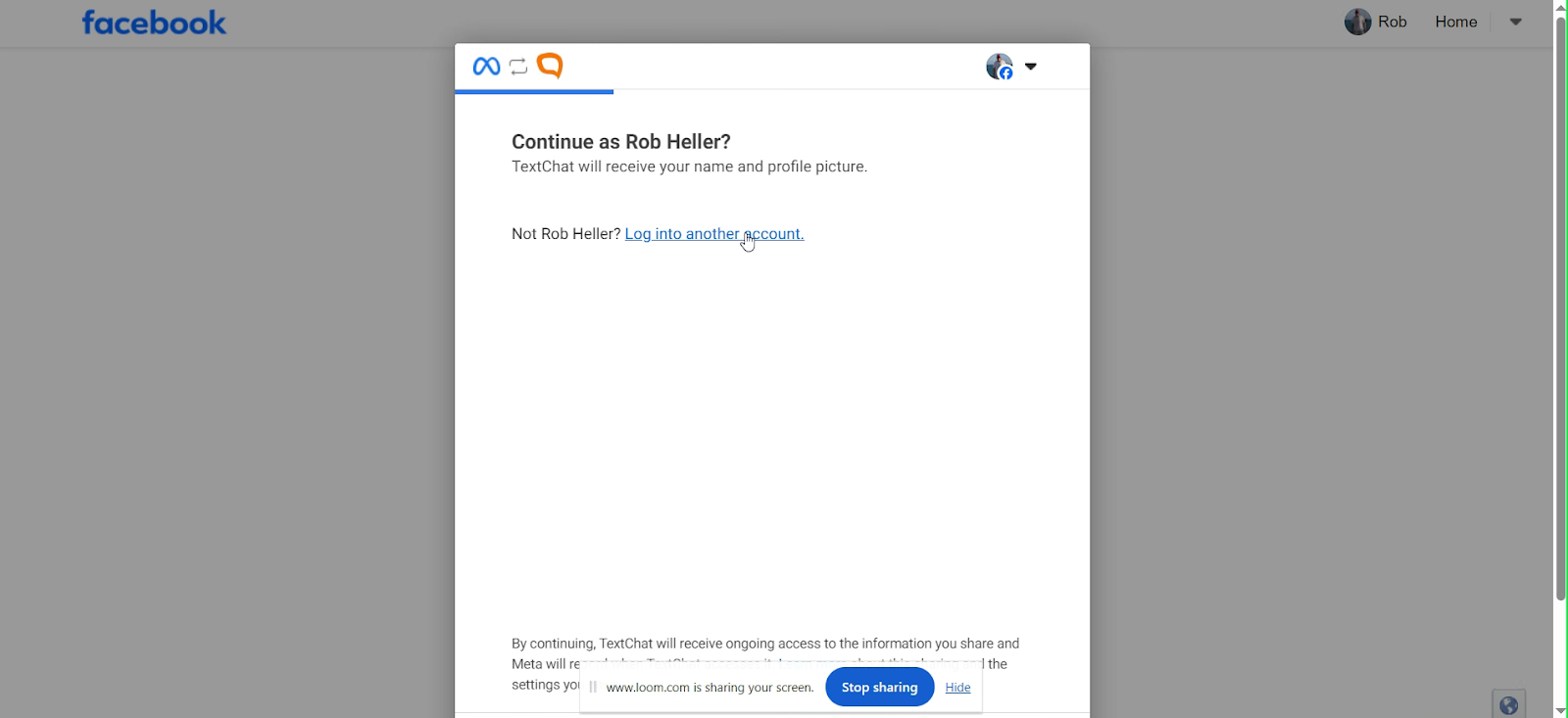
Click Continue.
Opt in to show current pages only, or select current and future pages if you want Palera to automatically access any new pages added later.
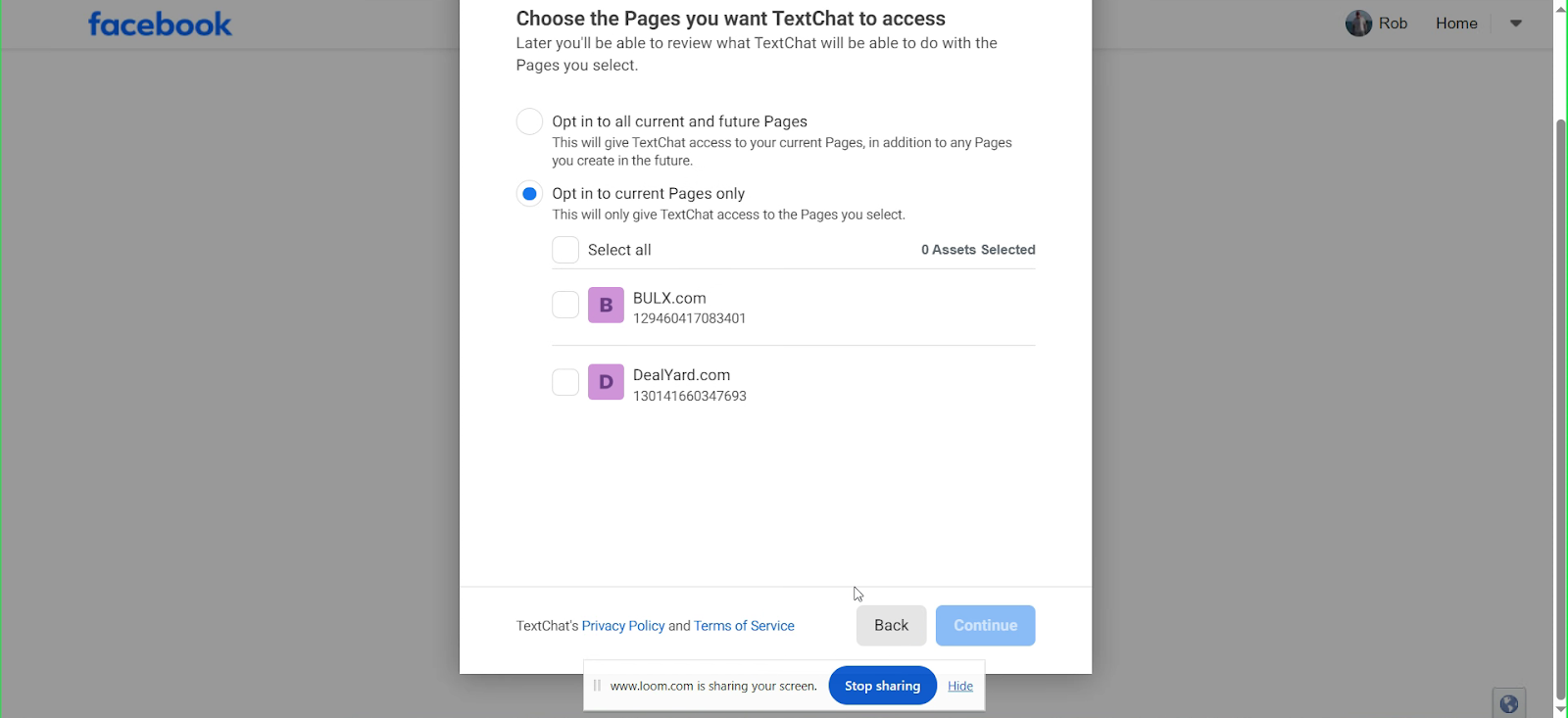
Click Continue again.
Choose whether to opt in for current businesses only or current and future businesses, depending on your needs.
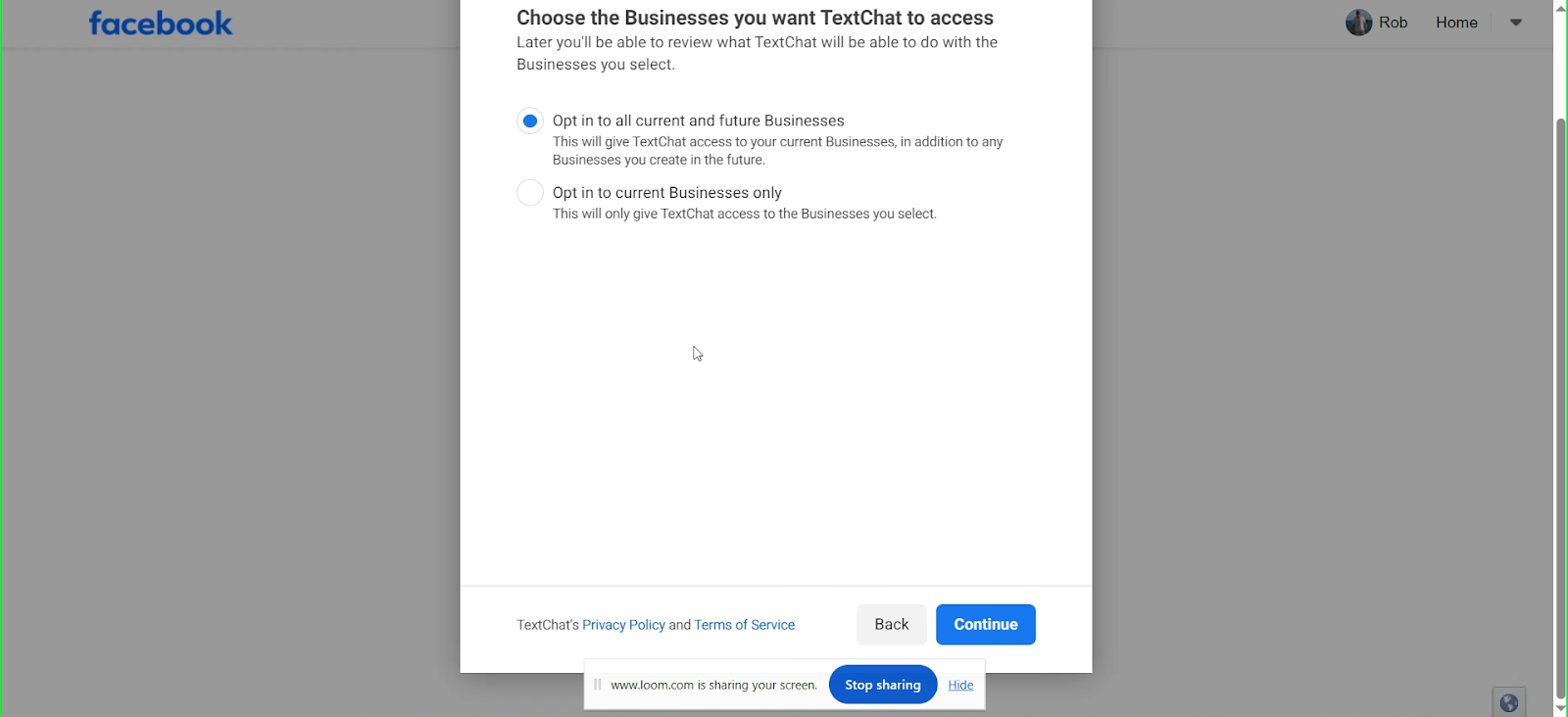
Review the permissions Palera will have access to.
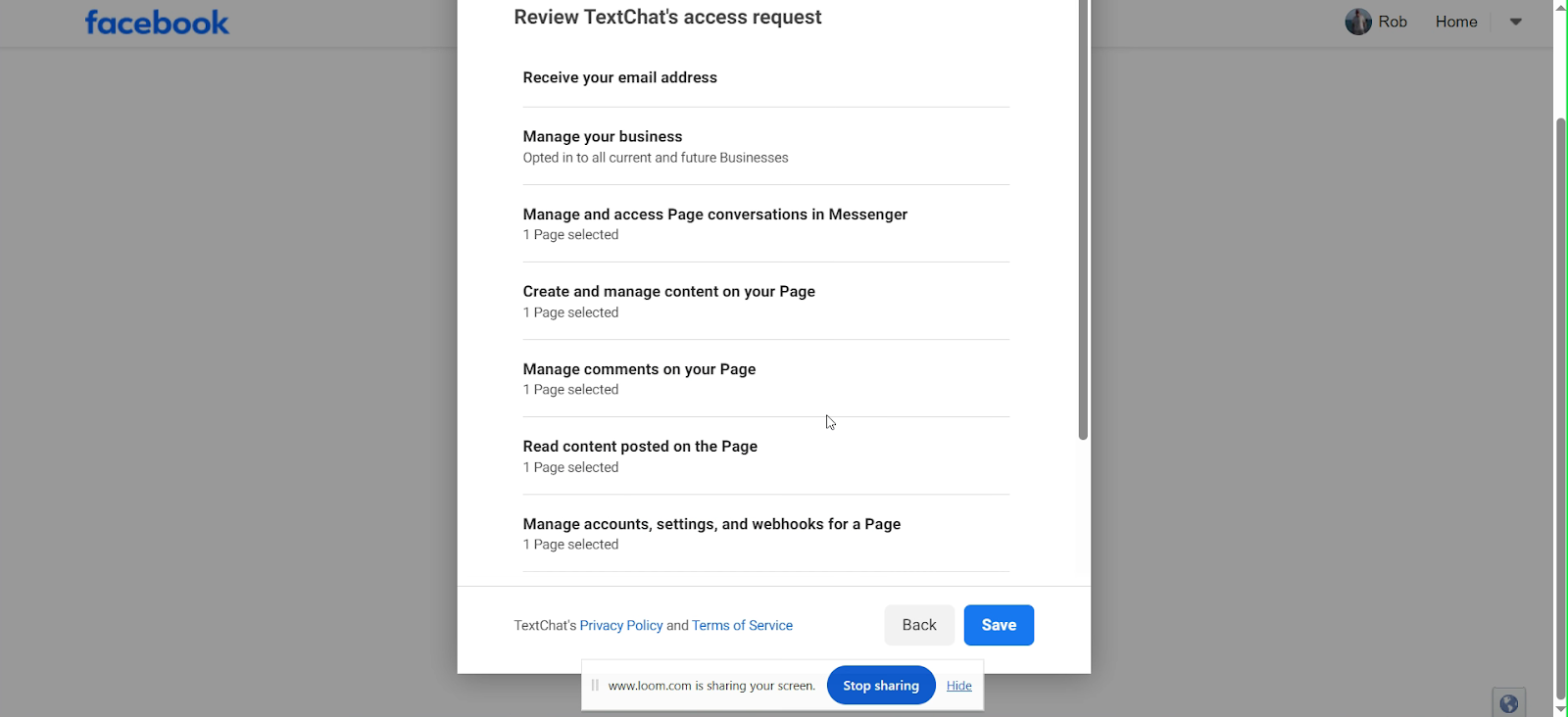
Click Save to complete the connection.
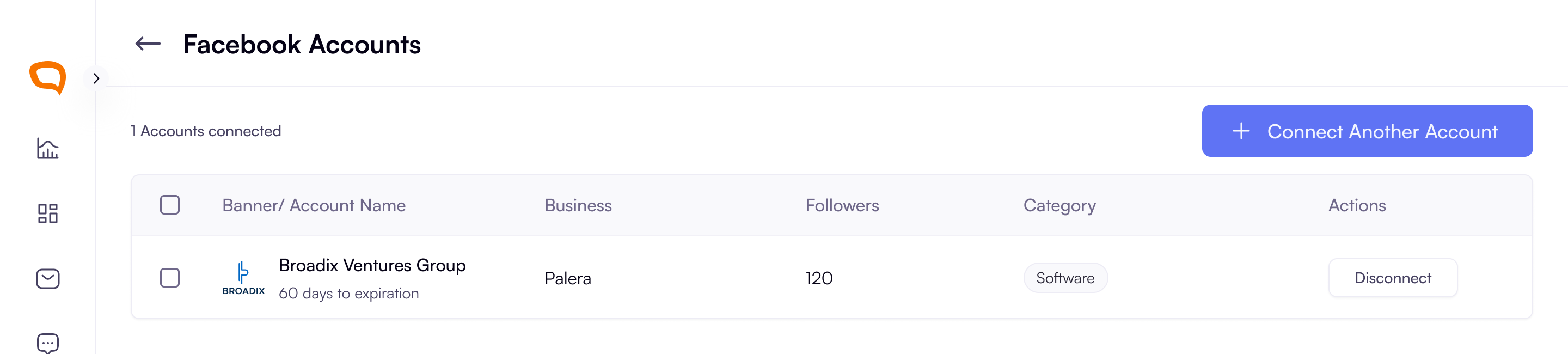
Back in Palera, confirm the Facebook channel connection for the client.
Important Note:
7-Day Messaging Window: Facebook enforces a 7-day reply window. If no response is sent within this time:
The conversation will automatically close
The message input field will be disabled in Palera
A banner will appear indicating that the reply window has expired
Disconnected Accounts: If a Facebook account is disconnected:
You will no longer be able to reply to messages or comments
This applies even to previously unanswered conversations
A banner will appear to indicate that the channel is no longer active
Token Expiry Notifications: You will receive an email notification a few days before the Facebook token expires
If the token expires, this will be reflected on the Channels page in Palera
You will need to reconnect the account to restore functionality
Also
Once connected and enabled, messages from the linked Facebook Page(s) will appear in Palera’s unified inbox.
You can manage multiple pages per client using this same process.
Only pages you have opted in for will be accessible to Palera.
Best Practices
Double-check the Facebook account before connecting to ensure the correct pages are linked.
Decide in advance whether you want current only or current and future pages/businesses to save time later.
Review permissions carefully to ensure your team has the access they need while protecting sensitive data.