Conversation Transfer
Super Admins can join any live conversation across the platform and transfer it directly to a client user. Transfers can only be made to client users, not to agents inside the BPO call center.
Written By Thando Nomvungu
Last updated 20 days ago
How a Super Admin Joins a Live Conversation
Go to Platform Activity.
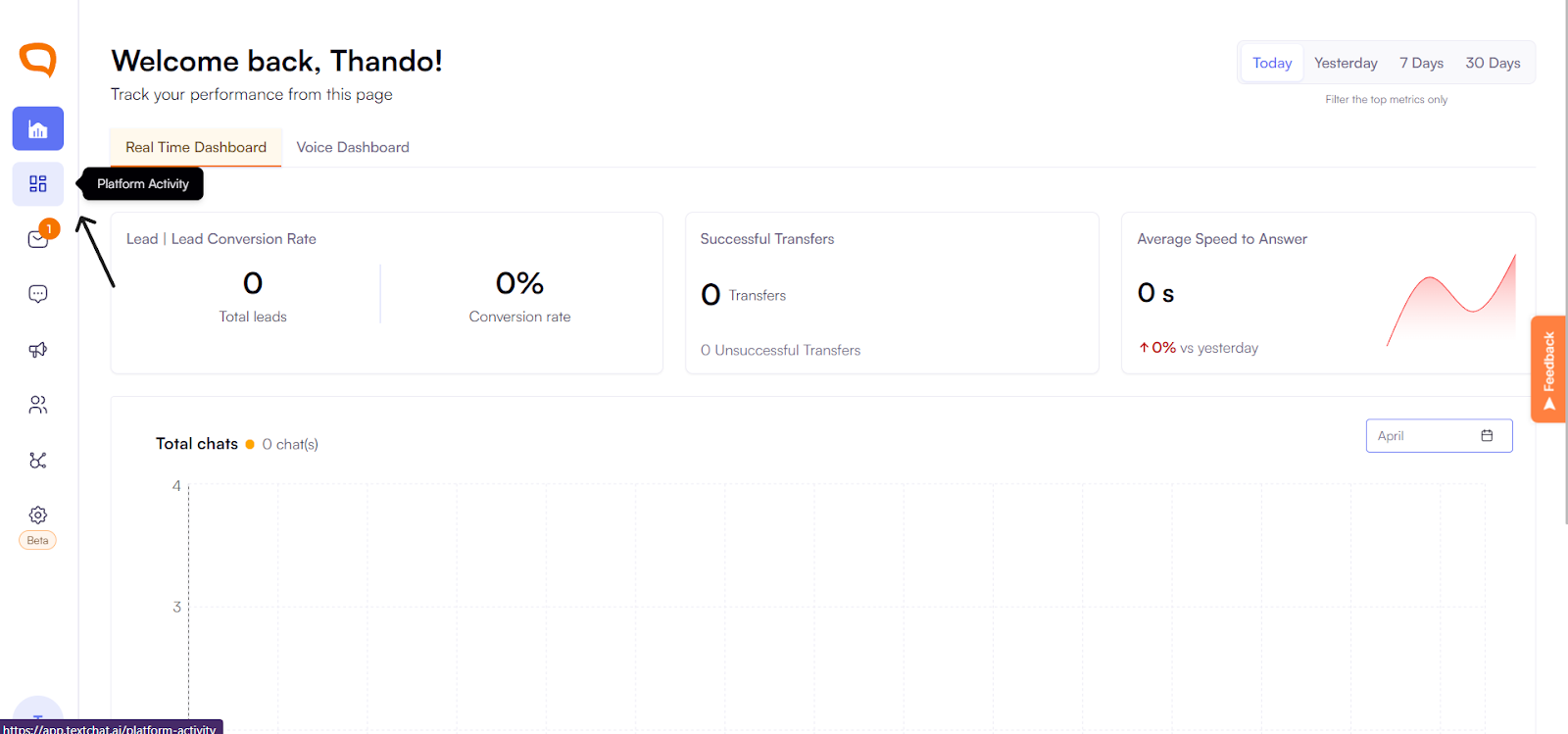
View all live conversations currently happening across the system.
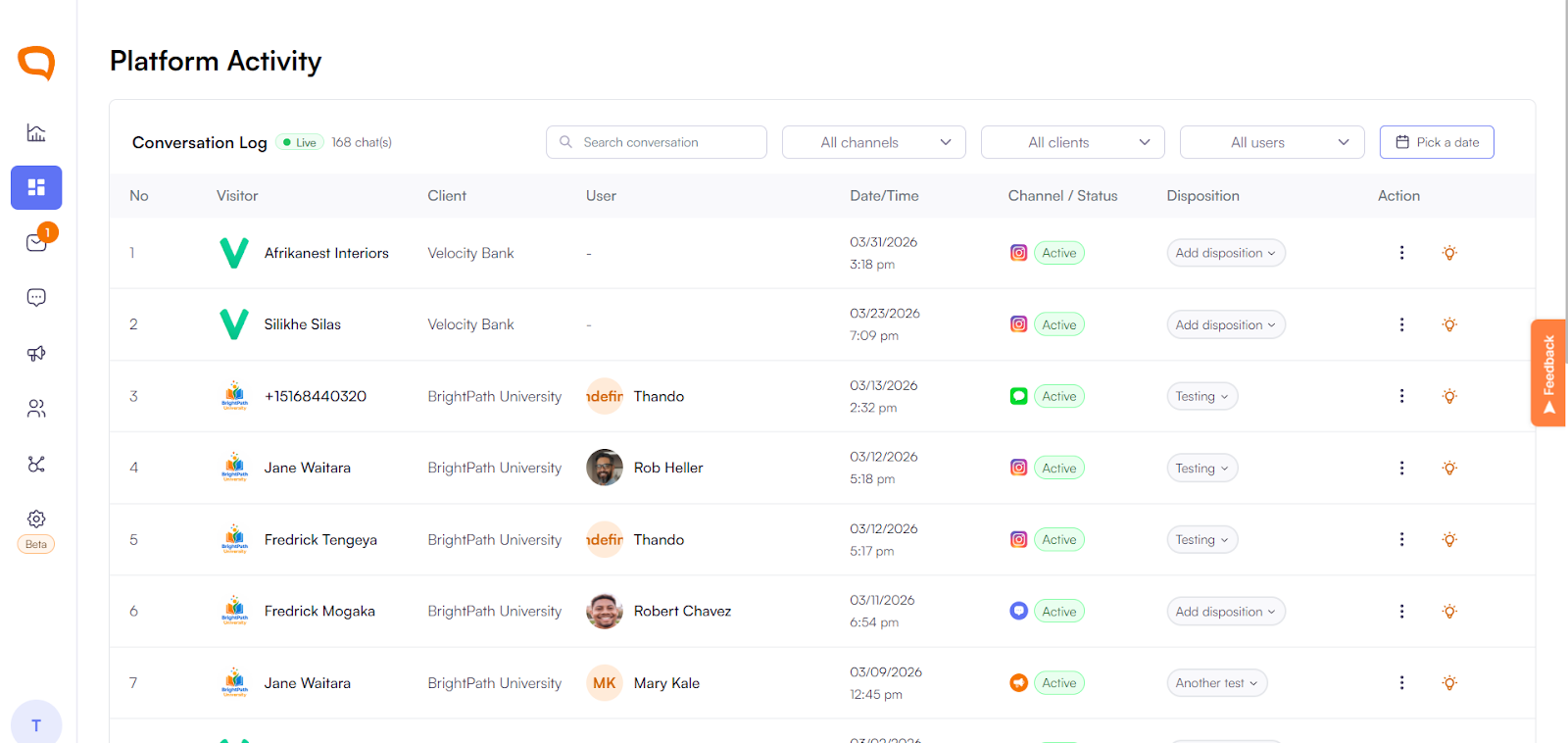
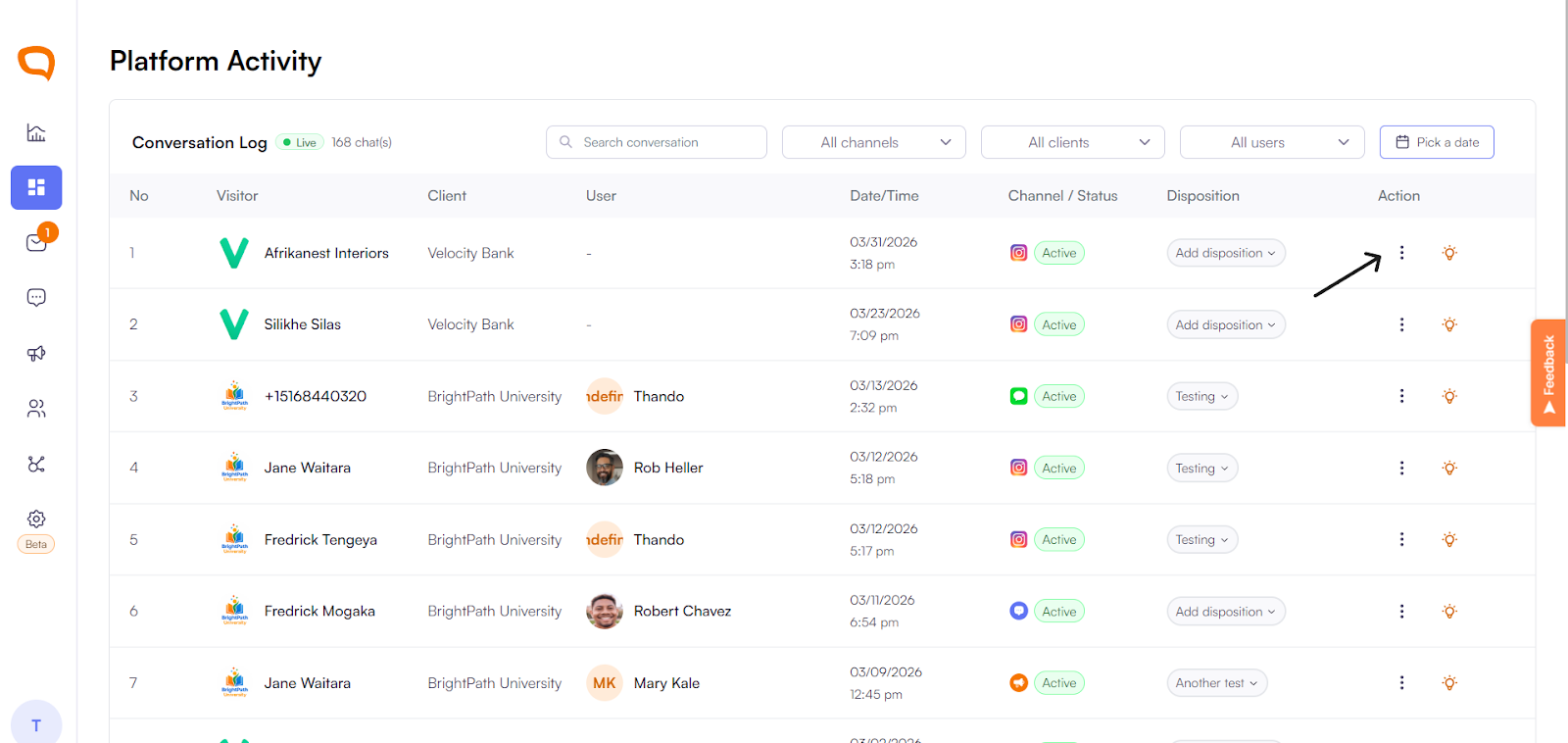
Find the conversation you want to enter.
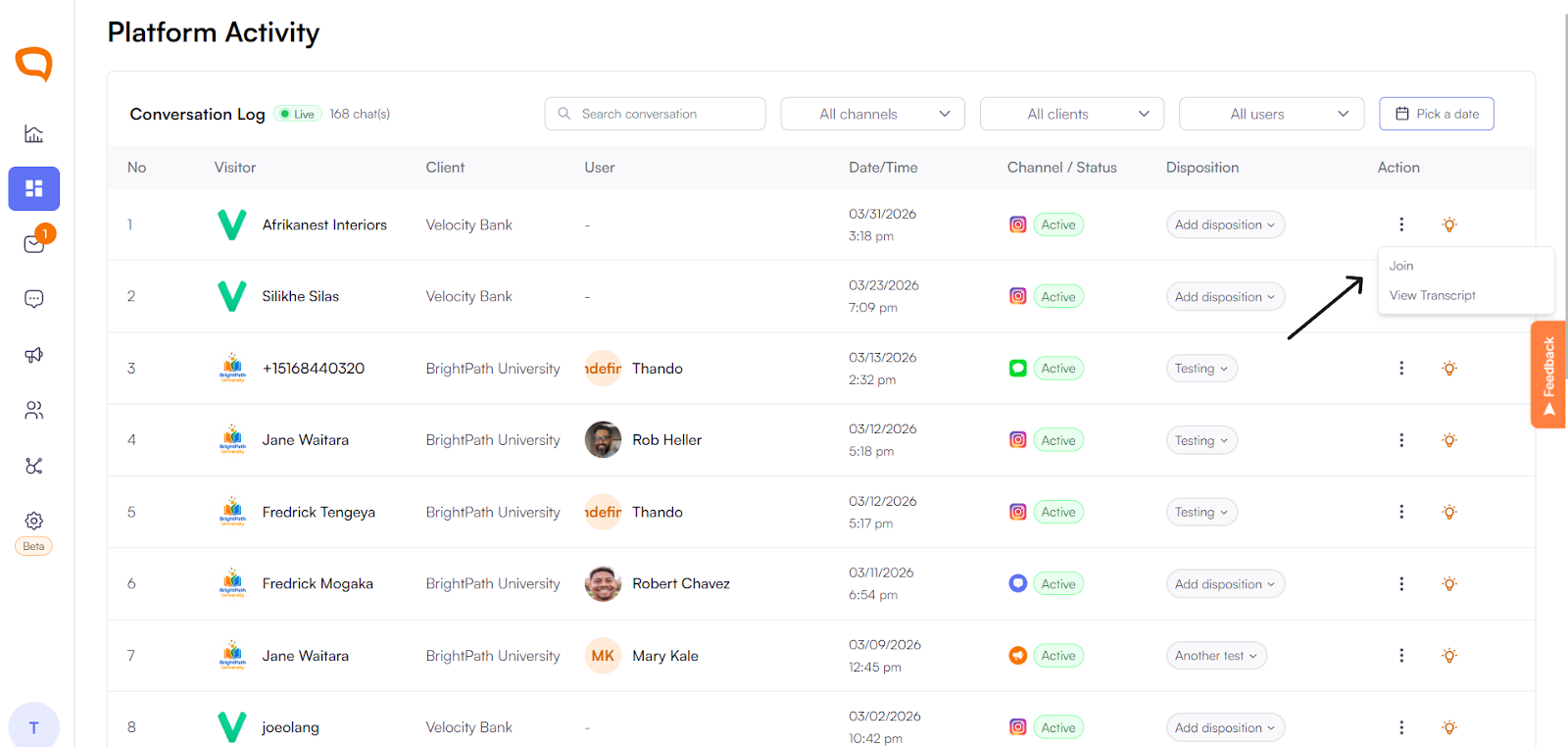
Click the three dots on that conversation.
Select Join Conversation
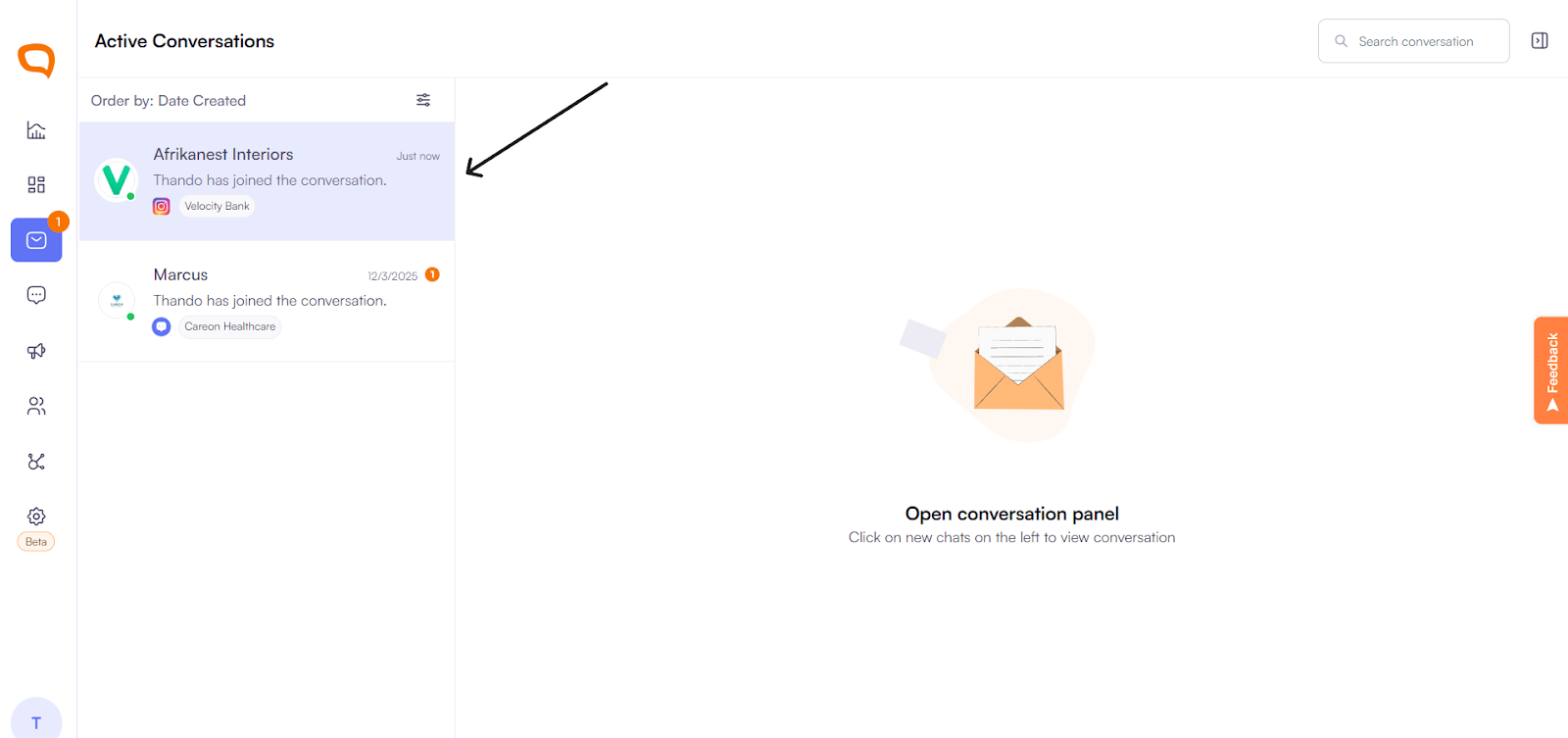
You will be taken into the Active Conversations page, where you can chat with the user like any other agent
Assigning a Disposition (Required Before Transfer)
Learn how to set up a disposition here
Before a transfer can happen, a disposition must be assigned
In the active conversation, select the appropriate Disposition.
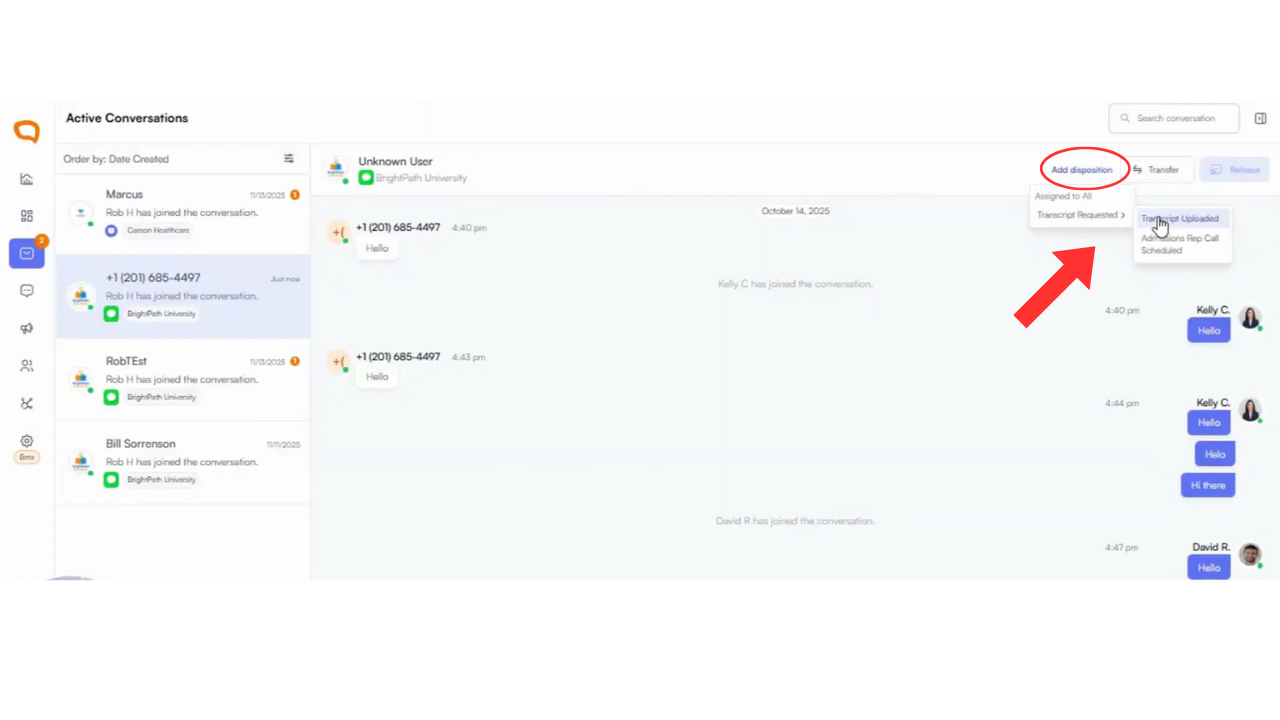
Save the disposition successfully.
Once saved, the Transfer option becomes available.
How to Transfer the Conversation to a Client
Click Transfer.
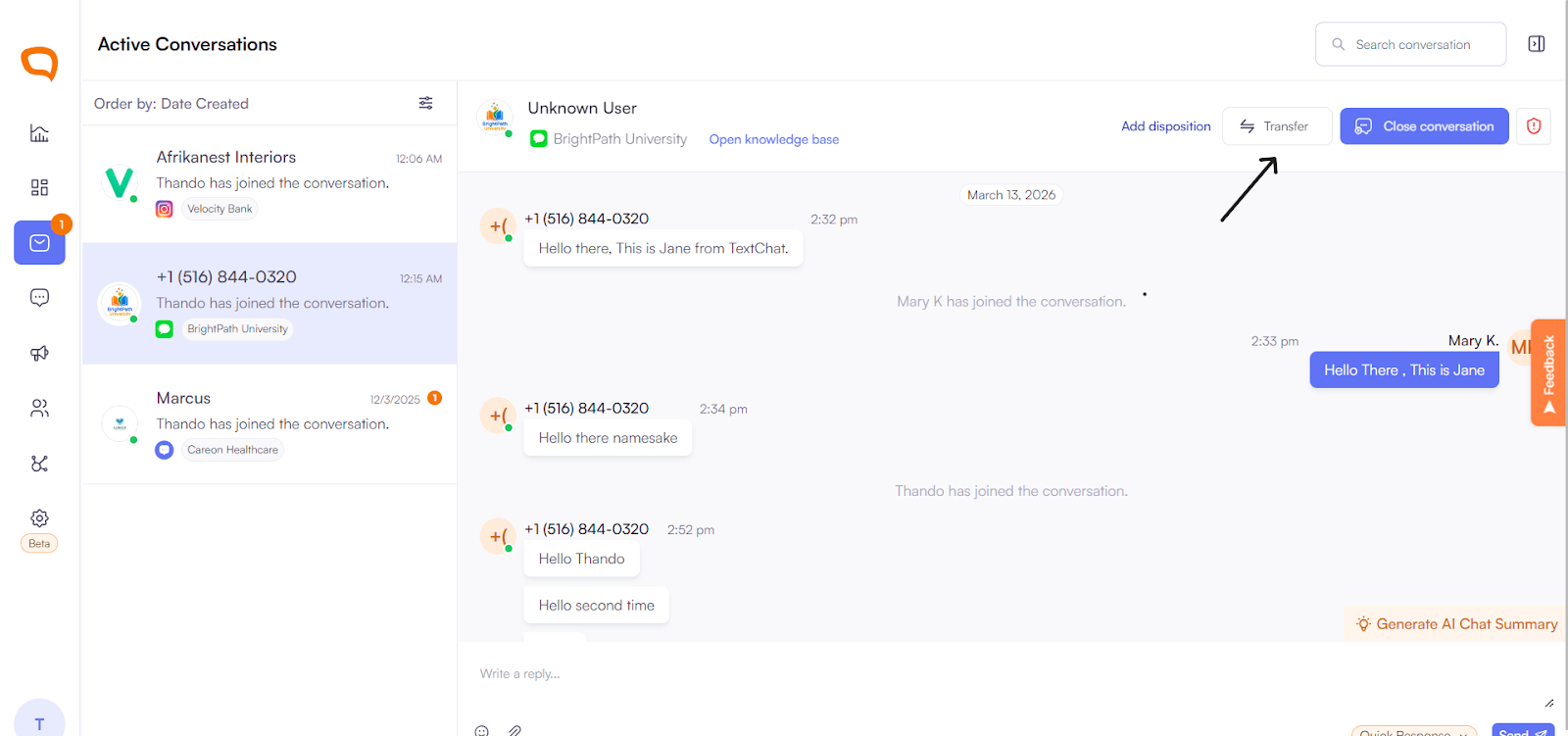
Choose the Client (e.g. Bright Path University).
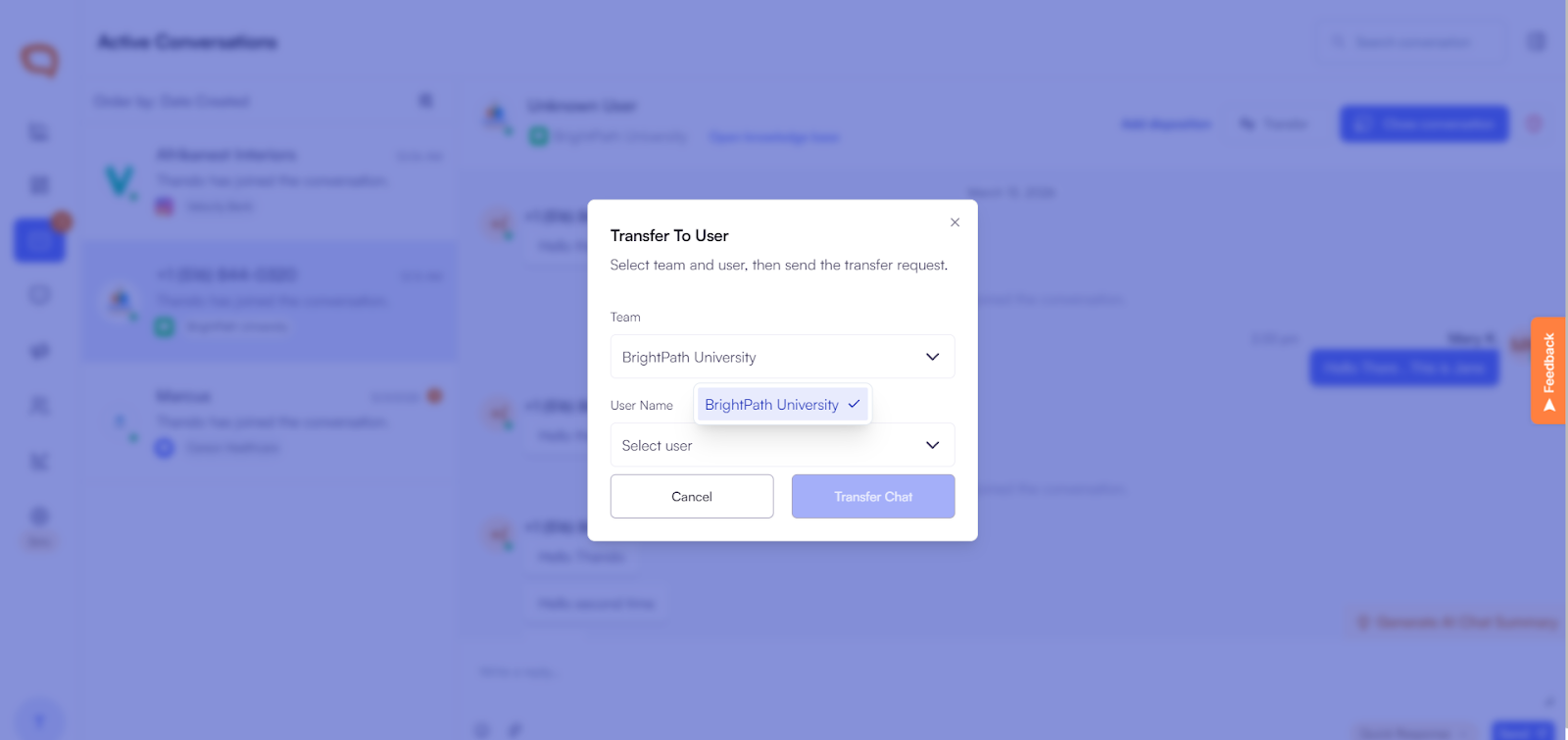
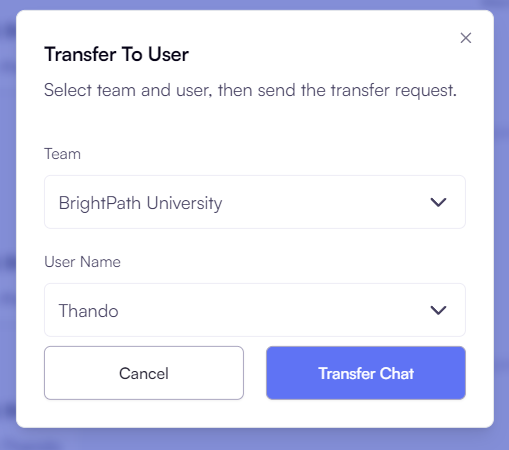
Select a client user who is currently online.
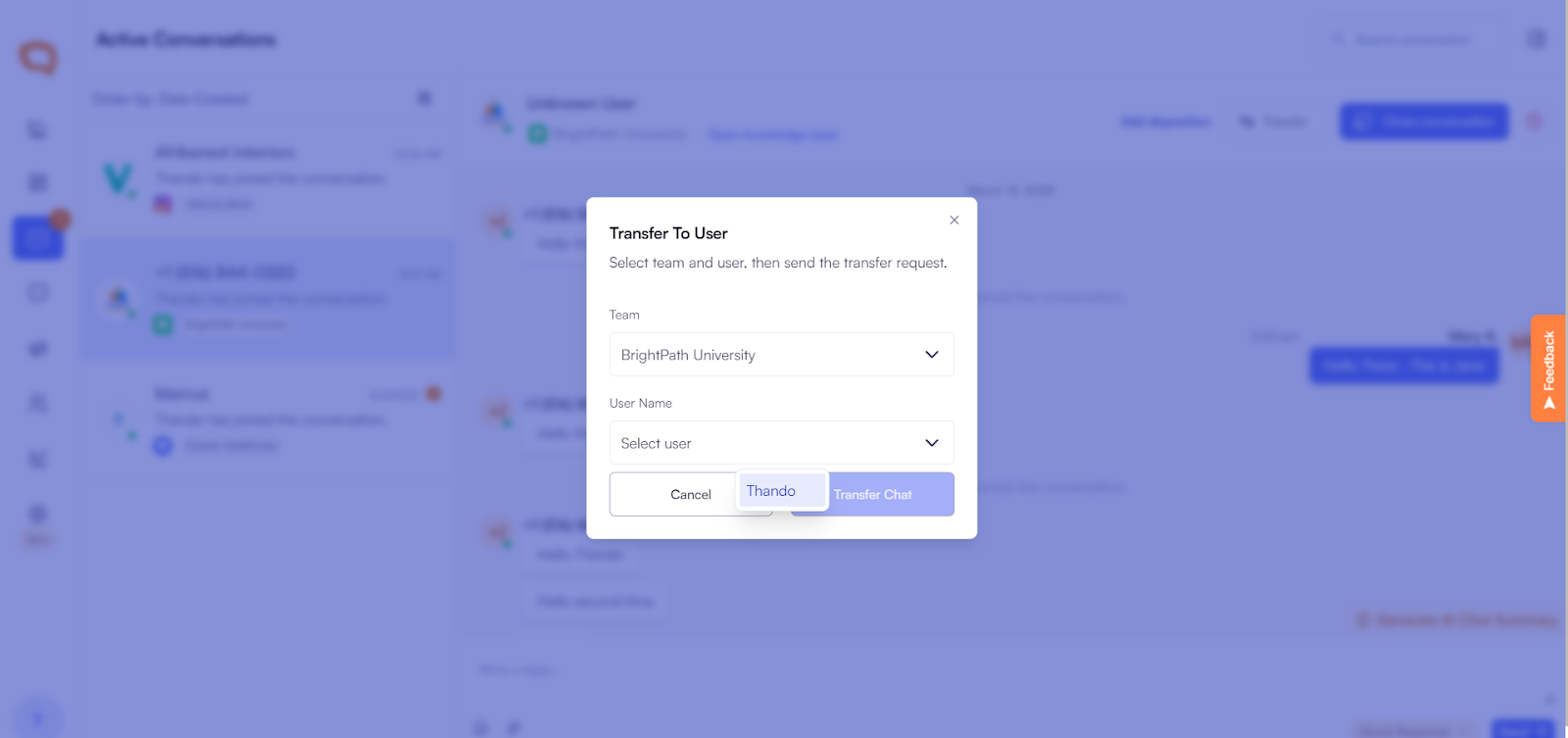
Confirm the transfer.
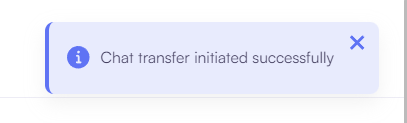
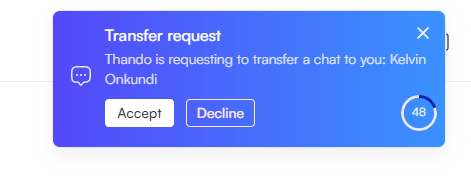
Palera will show a confirmation that the transfer was initiated successfully. The client will immediately receive an invitation to join the conversation.
Best Practices
Always assign the correct disposition before transferring
Transfer only to the appropriate client user
Use clear internal notes if needed for context